Tutorials · 7 min read
How to Remove Objects and People From Photos (iPhone, Android, Samsung, PC)
Erase a stranger, a bin or a power line with the free tools already on your phone or computer. Step-by-step for each device, plus tips for clean results.
By AIToolBase Editorial Team · Published
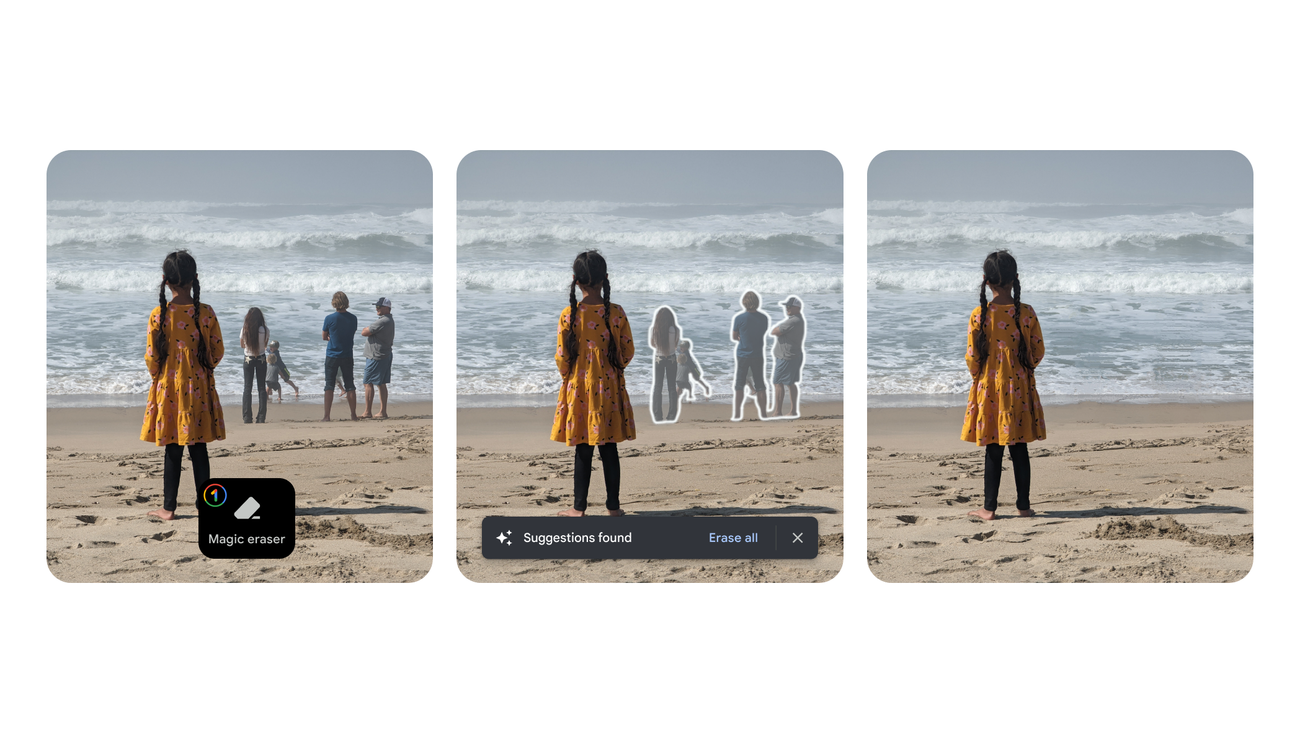
Short answer: Use the free eraser built into your device. On a recent iPhone, iPad or Mac, open the photo in Photos and choose Edit > Tools > Clean Up. On Android or iPhone, Google Photos has Magic Eraser; Samsung Galaxy phones have AI Eraser; and Windows Photos has Generative Erase.
This guide is for anyone who wants a stranger, a bin or a stray cable gone, without learning Photoshop.
Which tool should you use?
| Your device | Free tool | What you need (as of November 2026) |
|---|---|---|
| iPhone, iPad, Mac | Photos Clean Up | Apple Intelligence device: iPhone 15 Pro or later, M1 Mac or later |
| Android or iPhone | Google Photos Magic Eraser | At least 3 GB RAM and Android 8.0 or iOS 15 |
| Samsung Galaxy | Gallery AI Eraser | Select models with One UI 6.1+, Samsung account, internet |
| Windows 10 or 11 | Photos Generative Erase | Updated Photos app; runs on your PC |
| Any browser | Photopea Spot Healing Brush | Nothing to install |
| Your own computer | IOPaint (open source) | Python; comfortable with a terminal |
How do you remove objects on iPhone, iPad or Mac?
Apple's Clean Up tool is part of Apple Intelligence. It needs an iPhone 15 Pro or 15 Pro Max, an iPhone 16 model or later, an iPad with A17 Pro or M1 or later, or a Mac with M1 or later. Apple notes it isn't available in all languages or regions, and doesn't currently work on devices bought in mainland China.
- Open the photo in the Photos app.
- Tap the Edit button.
- Tap Tools, then Clean Up.
- Tap, brush or circle what you want to remove.
- Tap Clean Up if you use High Quality processing.
- Save your edit, then tap Done.
Photos may highlight distractions automatically so you can remove them with one tap. To undo after saving, go back to Tools > Clean Up and tap Reset. On a Mac, double-click the photo, click Edit, then Tools > Clean Up.
Trevor Nace's two-minute video shows Clean Up removing people and objects in the iPhone Photos app.
How do you remove a person in Google Photos?
Magic Eraser has been free for all Google Photos users since 2024, with no subscription needed. Google lists at least 3 GB of RAM and Android 8.0 or iOS 15 as the minimum.
- Open the photo in Google Photos.
- Tap Edit at the bottom.
- Open the Actions tab and tap Magic Eraser, or search for it.
- Tap, circle or brush the person or object.
- Tap Erase.
- Tap Done, then Save as copy to keep the original.
If the tool asks you to Install it first, connect to Wi-Fi and let it download. Use Refine selection to add or subtract objects from a selection.
Max Dalton's video walks through Magic Eraser on Android; the editor layout has changed a little since 2024.
How do you remove objects on a Samsung phone?
On Galaxy phones and tablets with Android 14 and One UI 6.1 or higher, the tool is in the Gallery app. Samsung says basic Galaxy AI features are free, but you need a Samsung account and an internet connection.
- Open the Gallery app and select a photo.
- Tap the Edit icon (the pencil).
- Tap the Photo assist icon (blue circle with stars).
- Choose AI Eraser and tap or outline the object.
- Tap Erase, or Return to undo.
- Tap Save as copy.
Two catches from Samsung's page: edited photos are resized to up to 12MP, and AI-generated images get a Galaxy AI watermark.
How do you remove objects on Windows or online?
Windows Photos has Generative Erase on Windows 11 and Windows 10. Microsoft says the processing happens locally, so your photo never leaves your PC.
- Open the photo in the Photos app.
- Select Edit image (or press Ctrl + E).
- Select Erase.
- Set the brush Size and paint over the object.
- With Auto apply off, use Add mask, then select Erase.
- Save your edited photo.
Photopea is a free online editor that, according to its own documentation, runs on your device and doesn't upload your files. Use the Spot Healing Brush: paint over the object, release, and it fills the area from its surroundings. It's not AI, but it works well on small spots.
Photoshop has a Remove tool, but Adobe's Photoshop web page says there isn't a free version of Photoshop on the web. Canva has a Magic Eraser, but Canva blocked our checks, so we couldn't confirm whether it's on the free plan.
IOPaint is a free, open-source tool (Apache 2.0 licence) that runs the LaMa erase model on your own computer. Note that its GitHub repository was archived in August 2025, so it no longer gets updates.
pip3 install iopaint
iopaint start --model=lama --device=cpu --port=8080
# then open http://localhost:8080 in your browser
How do you get clean results?
AI erasers guess what was behind the object. Small guesses look convincing; big ones don't.
- Include the shadow and reflection. Otherwise a ghost outline stays behind.
- Work in small passes. Erase one object at a time, then zoom in to check.
- Keep the original. Use Save as copy wherever it's offered.
- Expect failure on large objects. If the object takes up a big part of the frame, cropping is often better.
- Watch patterns and text. Brick, tiles, fences and signs often come back warped or smeared.
- Check faces at the edges. Erasing next to a person can bend an ear or a hand.
Need the subject on its own instead? See how to remove the background from an image. Want to bring the cleaned-up shot to life? Try animating it with AI.
Only remove watermarks or credits from images you own the rights to; stripping them from someone else's work can break copyright law and the tool's terms. A photo with people erased can mislead if it's used as evidence or news, so don't present an edited photo as an untouched record.
Did you know? Apple's Clean Up help page says that from iOS 27.2, most images edited with Apple Intelligence tools carry a hidden SynthID watermark. Google Photos also labels Magic Eraser edits "Edited with AI tools" in the photo's details.
For generating new pictures rather than fixing old ones, see our guide to creating AI images for free or browse the image models category.
Frequently Asked Questions
How do I remove an object from a photo on iPhone?
Open the photo in Photos, tap Edit, then Tools > Clean Up, and tap or circle the object. It needs an Apple Intelligence iPhone, such as an iPhone 15 Pro or any iPhone 16.
How do I remove a person from a photo in Google Photos?
Open the photo, tap Edit, choose Magic Eraser from the Actions tab, select the person and tap Erase. It's free and works on Android and iPhone.
How do I remove an object from a photo on Android without Google Photos?
Samsung Galaxy phones have AI Eraser in the Gallery app under Photo assist. Other brands may have their own eraser in the gallery app; check the manufacturer's help pages.
Can I remove an object from a photo online for free with no sign-up?
Photopea opens in your browser and its Spot Healing Brush removes small objects. Its documentation says files are processed on your device rather than uploaded.
Is Canva's Magic Eraser free?
We couldn't confirm it, because Canva's pages blocked our checks. Open Magic Eraser in Canva to see whether your plan includes it.
How do I remove an object in Photoshop?
Photoshop has a Remove tool, but Adobe says there's no free version of Photoshop on the web, so you need a Photoshop plan or trial. For a free browser alternative, use Photopea's Spot Healing Brush.
Sources
- Apple Support, Requirements to use Clean Up in Photos
- Apple Support, Clean up, extend, and reframe photos on iPhone
- Apple Support, Remove distractions and imperfections from your photos on Mac
- Google Photos Help, Edit your photos (Android)
- Google Blog, Google Photos expands AI editing features to all users
- Google Photos Help, How Google Photos helps you identify how photos & videos were made
- Samsung US Support, Use AI editing tools in Gallery on your Galaxy phone or tablet
- Microsoft Support, Edit photos and videos in Windows
- Windows Insider Blog, Windows Photos gets Generative erase
- Photopea, Introduction and Smart Tools
- Adobe, Photoshop on the web
- GitHub, Sanster/IOPaint and advimman/lama
Reviewed on November 3, 2026. Device requirements, menu labels and free-plan rules for Apple, Google, Samsung, Microsoft, Adobe and Canva change with app updates; check each help page if a step looks different.